Create a New AD Site In 2008 R2 August 27, 2012
Posted by supportec in Active Directory.add a comment
By default when installing a new active directory Domain the installation creates a default site link and a default site.
The default site named Default-First-Site-Name and the default site link is called DEFAULTIPSITELINK.
These two can be renamed if needed.
We will create a new Active Directory Site and Subnet for a new domain controller in a remote site.
Remember if you don’t create an Active Directory site and Subnet for a remote office which holds a DC,
all authentication traffic will go to the main site and not to the nearest site’s DC.
To Create a new Active Directory Site and Subnet follow the steps below:
1. Open Active Directory Sites And Services
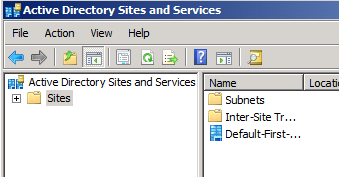
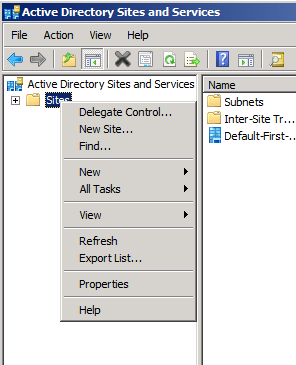
2. Right Click on Sites and Click new site
3. Name the new Site and select the Site Link
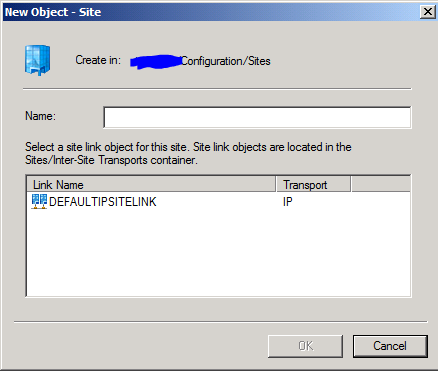
4. Click OK.
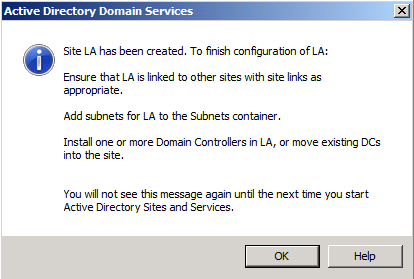
The next step is to create the subnet that will be associated with the new site
Then Every user that logs to the network from that subnet will be pointed to the DC located in the subnet.
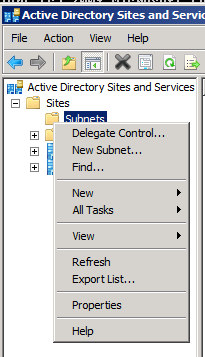
1. In Active directory Site And Services right Click on Subnets and Click on New Subnet
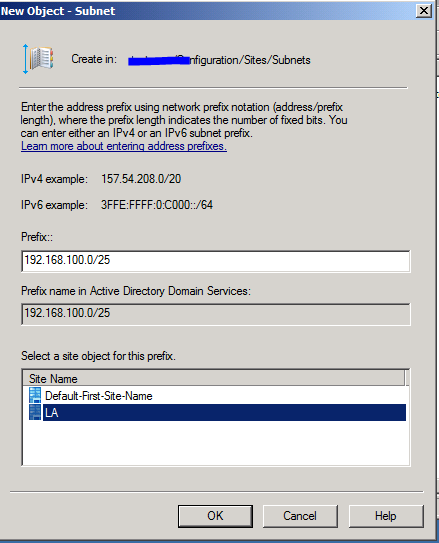
2. In the New Subnet window type the subnet for the remote site and associate the new site with it in the in the site object window.
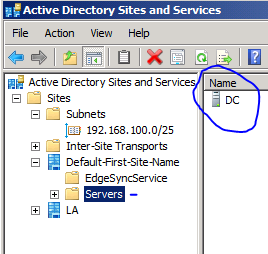
The last step is to associate a domain controller with the new site and subnet.
1. Go to Active Directory Site and Services – > Sites -> Servers
2. Right Click on the domain Controller you want to move to the new site or the domain controller already in the remote site but not associate with it and click Move.
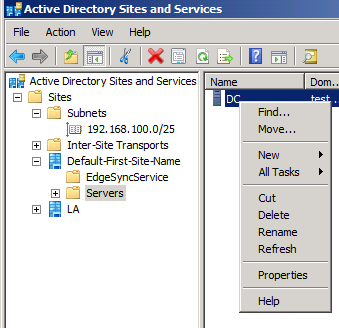
3. Pick the new Site name and it’s all done.
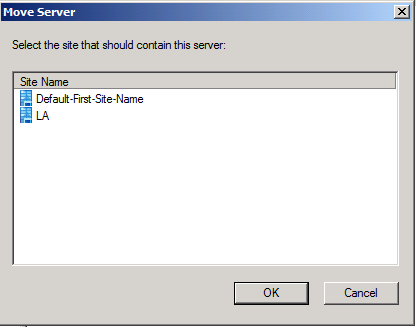
To find out if the Domain Controller is associated with the new subnet type the following command from the Domain Controller:
Dsquery server-s domaincontrollername | dsget server –site

Prepare AD for Windows 2008 R2 functional Level August 27, 2012
Posted by supportec in Active Directory.add a comment
If you are using windows server 2008 or Windows Server 2003 and needs to install a new
Domain Controller running Windows Server 2008 R2 you will have to prepare Active Directory first.
To prepare Active Directory follow the steps below:
Note:This step needs to run from the current domain controller that holds the schema operation.
1. Copy the adprep folder from the windows server 2008 R2 DVD (supprt/adprep) to the domain controller C:\ drive.

2. Open the command prompt in Elevated mode.
3. Navigate to the adprep folder we just copied from the DVD.
4. Run the command “Adprep /forestprep”


5. Now we need to prepare the domain, From the domain controller that holds the
infrastructure operation master run the following command: Adprep /domainprep /gpprep

Enable/Disable a Global Catalog Server On Windows Server 2008 August 27, 2012
Posted by supportec in Active Directory.add a comment
A Global Catalog Server stores a copy of all the objects in Active Directory,
this allows us to save network bandwidth between sites.
Another reason to have more than one GC is in case the main global catalog
server goes offline, users will still be able to log on to their computer by
being authenticated by the backup GC.
If the only GC in the domain goes offline and Group Membership Caching is
not enable on a secondary domain controller users will not be able to log
on to their computers.
Its recommended to have at least on GC on each site.
To enable or Disable GC on a domain controller follow the steps below.
1. Open Active Directory Site And Services -> Go to the specific site -> Click on Servers

2. Click on the server -> Right Click on the NTDS Settings in the left panel

3. Click on Properties.

4. Here you can enable or disable the server from acting as a Global Catalog server.

Enable/Disable Universal Group Membership Caching in Windows Server 2008 August 27, 2012
Posted by supportec in Active Directory.add a comment
Universal Group Membership Caching enables us to allow users to log on to the network without contacting
a Global Catalog server, this is recommended to use in remote sites without global a catalog server.
To enable or disable Universal Group Membership Caching follow the steps below:
1. Open Active Directory Sites And Service -> Go to the site you need to enable or disable the feature -> Right click on the NTDS Site Settings and Click on Properties
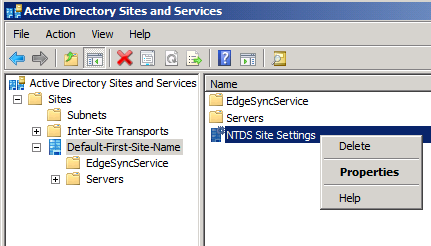
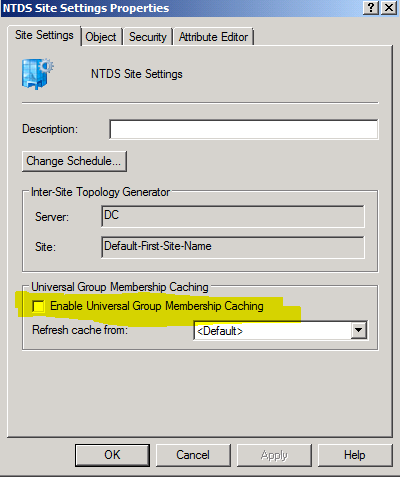
2. Tick the Box next to Enable Universal Group Membership Caching to Enable or Disable.
Create a New Active Directory Site Link In Windows Server 2008 R2 August 27, 2012
Posted by supportec in Active Directory.add a comment
In Active Directory all sites are connected by Inter-Site Transports links that allows us to replicate AD traffic from site to site.
In large organizations the cost and the capacity of the links are different from site to site and this is where Active Directory allows us to control which link will be use more often between each site based on capacity and cost.
This article will show you how to create and configure a new site link.
To Create a new site link follow the steps below:
Open Active Directory Sites And Services -> Go to Inter-Site Transports -> IP

Right Click on IP -> Click on New Site Link

Name the Site Link and select the Sites that will be part of the link (you can change this later)

To configure the cost and replication interval, Right Click on the new link and click on properties


In the site Link Properties, You can change the Link Cost, Replication interval and schedule.
You can also add and remove sites that will use the link.

 Supportech